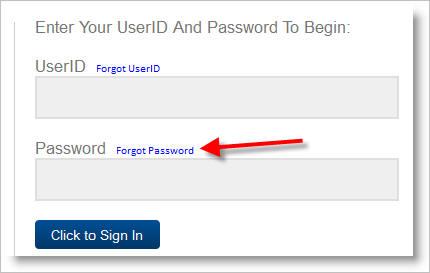
What to do when a user forgets their password.
Users have the ability to retrieve their own account password using the email address associated with their account. To do so, they will click the "Forgot Password" link appearing on the User Login screen. A similar approach can be used for users that have forgotten their User ID.
If the user cannot retrieve their password using self-service, SuperUsers in AppliTrack can change or reset a password on a user's behalf. Note, the following instructions apply only to SuperUser accounts having the "Can Control Users" permission.
Here's how:
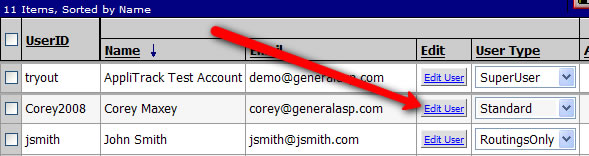
1) Click the Users tab.
2) Click Edit User in the Edit column for the user whose password you wish to change.
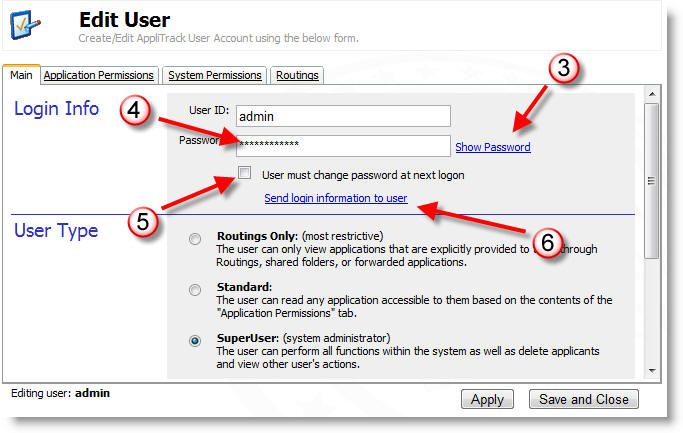
3) Click Show Password to unblock the password.
4) The password can be read or changed within the Password field.
5) If you wish to force the user to change his or her password at the next login, click the checkbox.
6) You can send the user their current userID and password with the 'Send Login Information to User' link. Their credentials will be sent to the email address listed for their user account.
Note: This is the procedure for viewing or resetting a user's password. If you wish to view or reset an applicant's password, click here.